
[Title of Project]
By Jen Andrella [add this line by hitting “enter/return” key after title]
Introduction [heading 2 block]
[Paragraph Block ] Today’s such a wonderful day, let’s just make a happy little painting. Maybe I’ll have a bit mountain today. You can do anything that you believe you can do. Get it to where you want it, and leave it alone. That’s the fun part of this whole technique. Don’t over do it — be careful. Be careful. Always start with a clean brush in a light area and work outward. We planned this son-of-a-gun right from the beginning. People are so excited when they see this happen. Everybody will see nature through different eyes.
Let’s make some happy little clouds in our world. Be sure it’s odorless or you’ll be working by yourself. A half a hair and some air. Let’s build us a little cloud. I lived in Alaska for many, many years. Begin laying in just some beautiful little highlights. We’ll just sort of see what happens. The round brush is so fun, let’s go back to that. Just make little X’s, and we’ll put in a happy little sky. Always keep the brush moving.
1. Sub-section title/title for story map
Embed your storymap by going to you Story Map JS editor > Share > copy iframe code under “Embed” > paste it here in the content block “Custom HTML”
New Sub-section

[Paragraph] Today’s such a wonderful day, let’s just make a happy little painting. Maybe I’ll have a bit mountain today. You can do anything that you believe you can do. Get it to where you want it, and leave it alone. That’s the fun part of this whole technique. Don’t over do it — be careful. Be careful. Always start with a clean brush in a light area and work outward. We planned this son-of-a-gun right from the beginning. People are so excited when they see this happen. Everybody will see nature through different eyes.
Let’s make some happy little clouds in our world. Be sure it’s odorless or you’ll be working by yourself. A half a hair and some air. Let’s build us a little cloud. I lived in Alaska for many, many years. Begin laying in just some beautiful little highlights. We’ll just sort of see what happens. The round brush is so fun, let’s go back to that. Just make little X’s, and we’ll put in a happy little sky. Always keep the brush moving.
Columns Block Demo [Heading 4]
Column 1
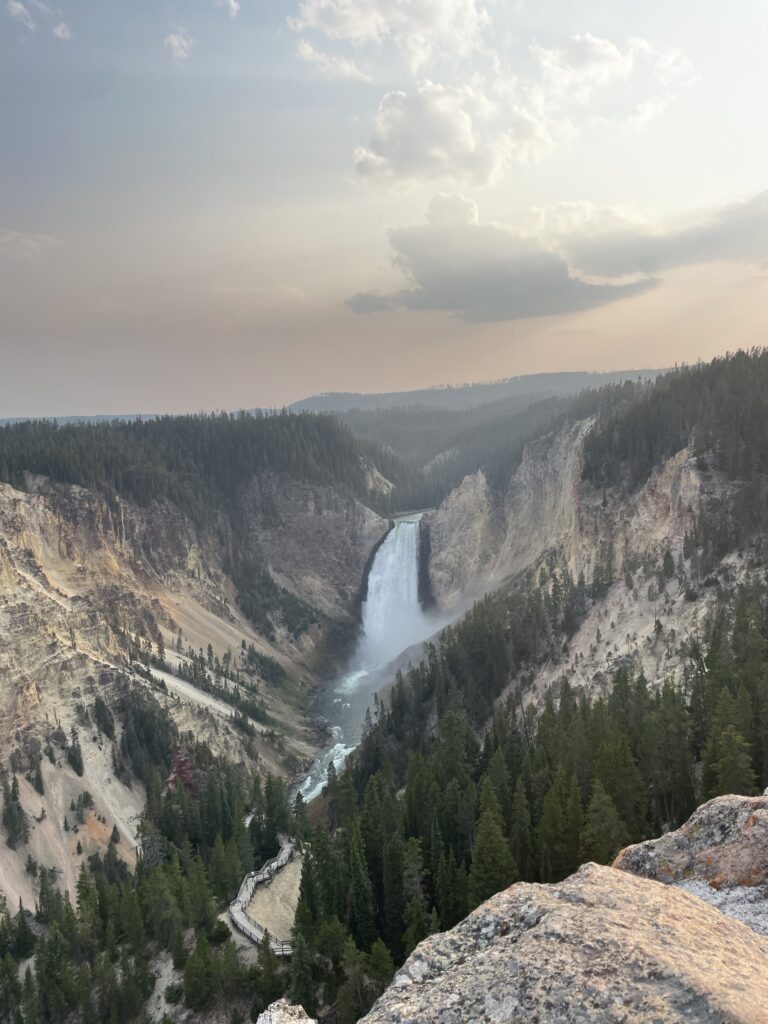
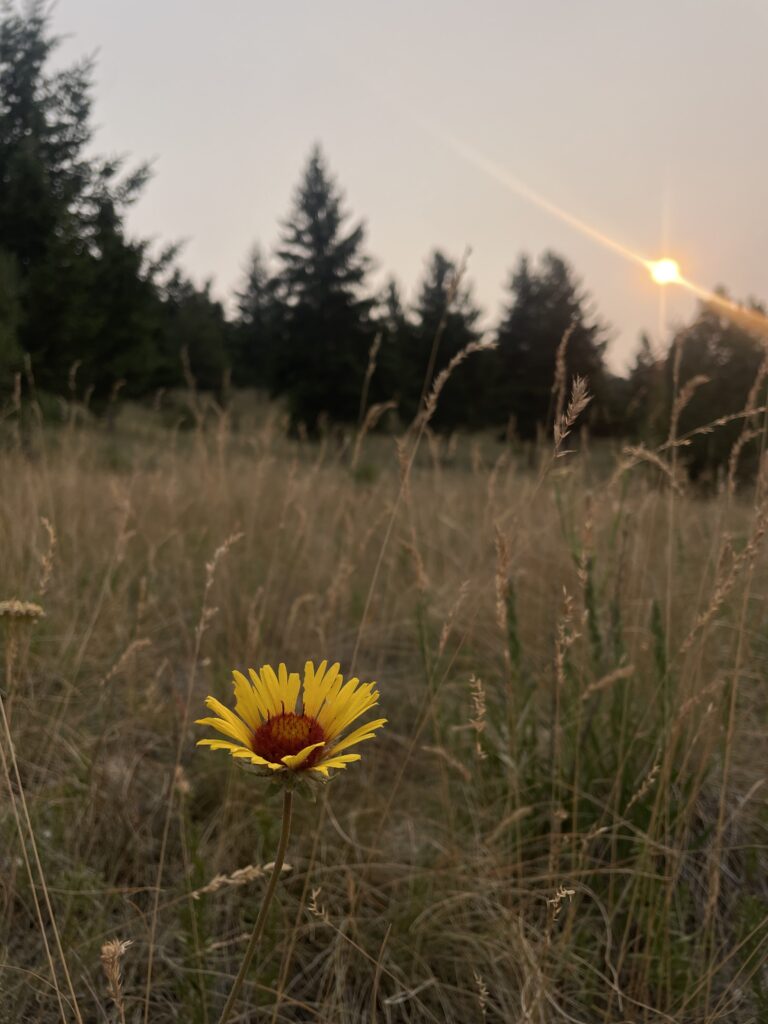
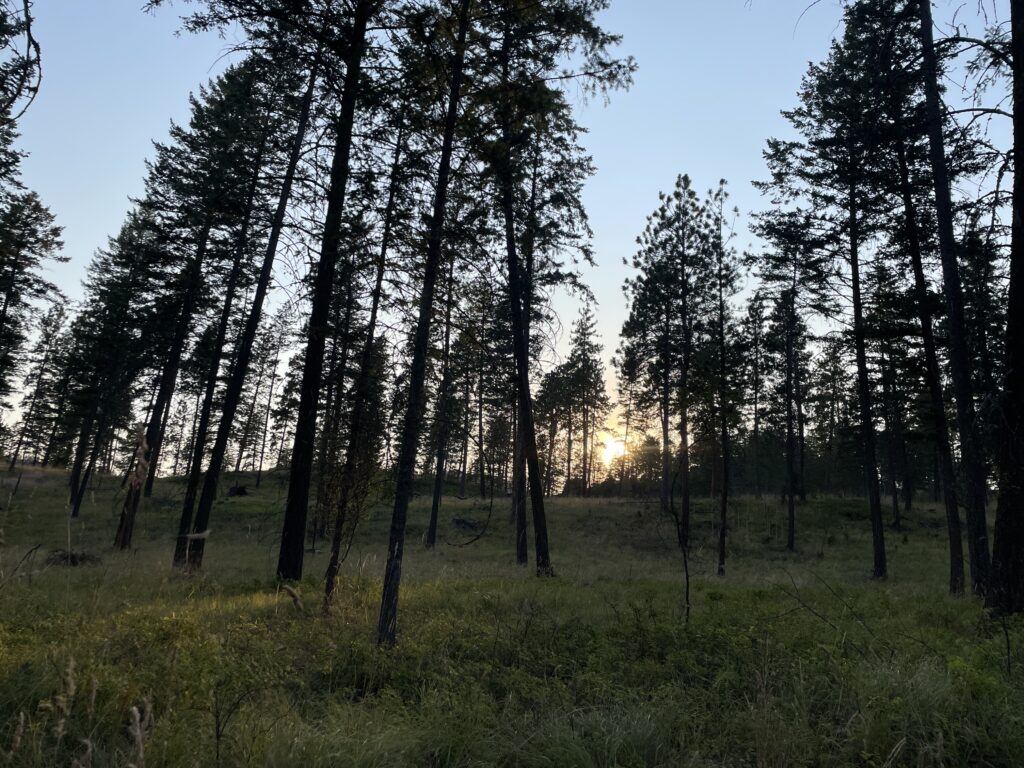
Each column can contain its own unique set of content blocks
Columns can also be set at different widths. That can be useful if you want a narrow text column and a wider column with media.
Column 2
Column 3
Embedding Media (H3)
If you would like to embed media from an external website, search for that platform in the content block library. WordPress can easily embed YouTube, Spotify, TikTok, Sound Cloud, and other sites.
Image Gallery Block [Heading 4]


Anchor Links (linking to a specific section of a page)
To hyperlink to a specific part of page, you can use anchor links. These links are created by using a unique identifier (the “anchor”) to a section of the page and then linking to that identifier with a hash (#) symbol. This will take the user directly to that specific section when they click the link. For example, here is an anchor link to section 1 on this page (the URL appears as: makingsense.knoxabolitionlab.org/#section-one)
To make anchor links in your own page follow the instructions here: https://wordpress.org/documentation/article/page-jumps/
To link to another student’s page from your page:
1. Go into the editor of another page and create an HTML anchor to the section that will be hyperlinked from your page.
2. Click Save Draft/Save (copy the page’s URL and remember the HTML anchor your created)
3. Return to your page and add a hyperlink to your desired text
4. Type/paste the other page’s URL and add the HTML anchor you created. The full link should look like this: (www.knoxabolitionlab.org/student-page-title/#html-anchor)
For example, here is an anchor link to the Class Map on the About Page.
Hypothesis Page Annotation
Hypothesis is a built-in annotation tool that allows you to start a discussion on any page. You can also highlight text for your own notes. To use Hypothesis, navigate to the left angle bracket (<) in the upper right corner to open the discussion log. To add annotations on the Hypothesis feature, create a free account.
To create an annotation, select text and then select the Annotate button.
To create a highlight (visible only to you), select text and then select the Highlight button.
e. To reply to an annotation, select the Reply button.
Footnotes/References
You can cite information by using in-text parenthetical citations, a footnote system (using numbered brackets [1] that correspond with footnotes), and/or by hyperlinking text to external websites (if the source exists online).
- Enter citation here
- Enter citation here
- Enter citation here